
(Credit: PCMag; Flipper)
“Anemoia” refers to nostalgia for a time, place, or thing that you never experienced, and the Busy Bar triggers that feeling. This retro-inspired desktop productivity device is the latest release from Flipper (of Flipper Zero and Flipper One fame), which has something of a cult following for its whimsical hacking tools. The Busy Bar initially launched in 2025 but recently received a major update, so I was glad to get a chance to try it out. The latest version sells for for $249, with the first 3,000 sold being discounted to $199.
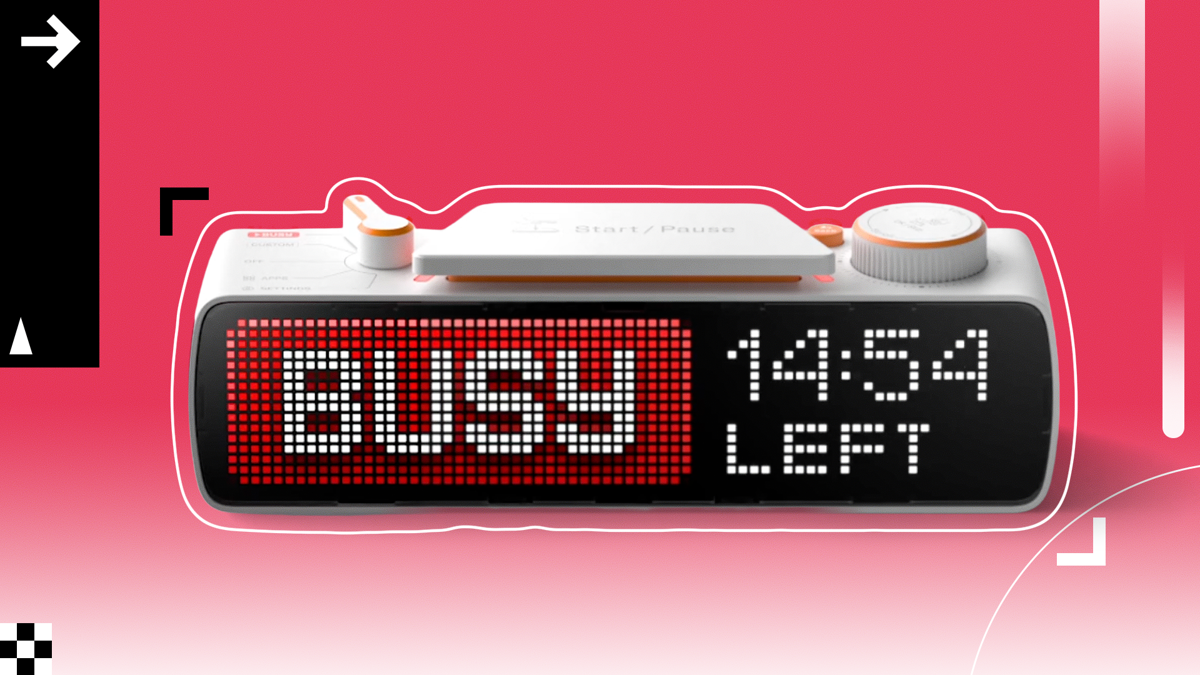
But what exactly is the Busy Bar? It mirrors the aesthetics of a plug-in alarm-clock radio while giving you open-nce, it’s a desktop display for timing work sprints and breaks, and for notifying people around you when you’re busy or free. The device can sync with a free app that blocks notifications and apps that you choose when you’re in focus mode
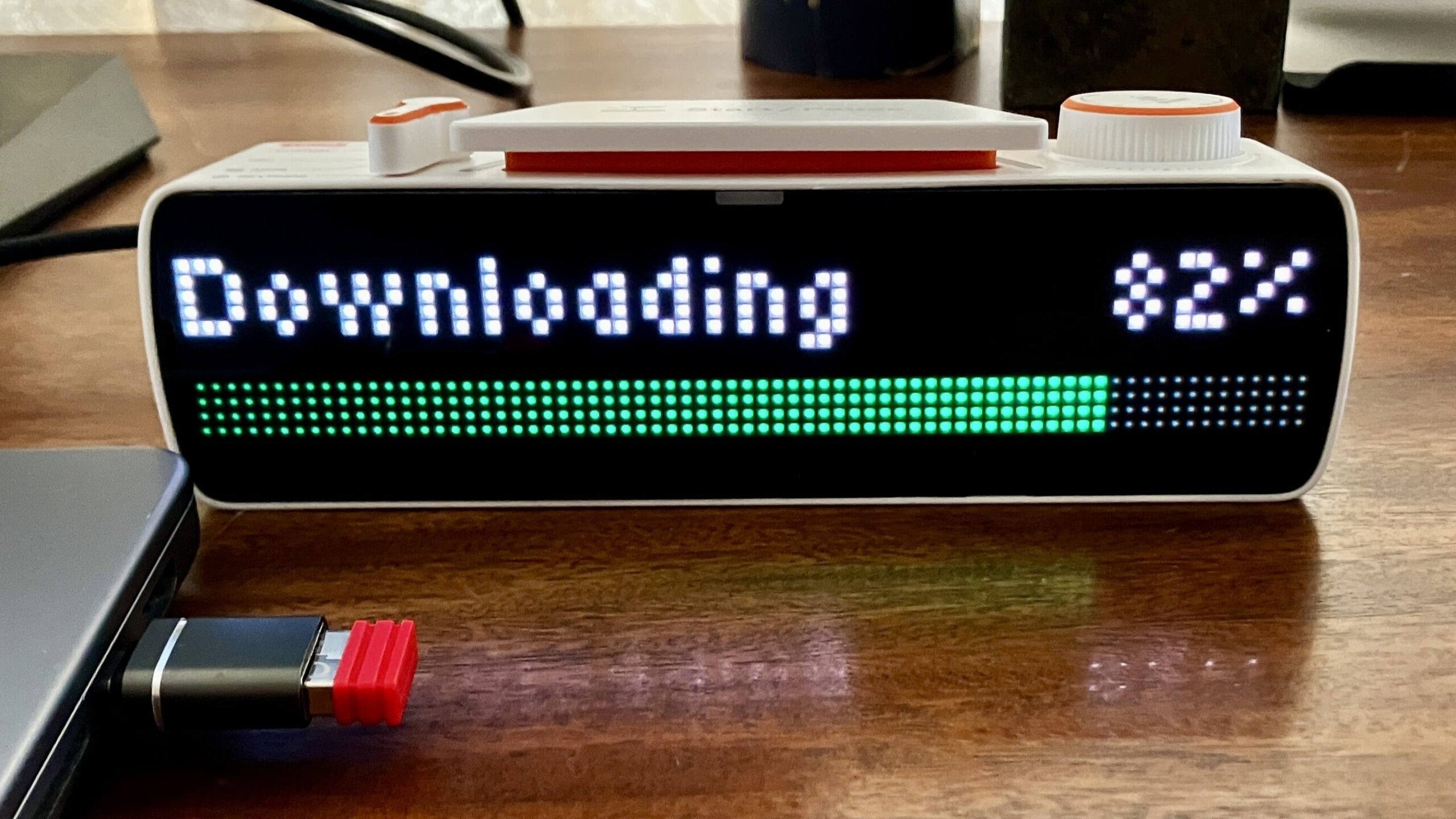
On the device itself are buttons, a knob, and a switch—in other words, real mechanical controls to maneuver! How satisfying it is to bop, turn, and flip them, just like in the old days before every interface was a touch screen. The Busy Bar runs on a lithium-ion battery and comes with a double-sided USB Type-C cable for charging and connecting to a computer
Its main hacking and timer features are live, but Flipper promises that’s just the start. It says to look forward to options for counting interruptions, tracking productivity, and more
A Productivity Timer At Its Core
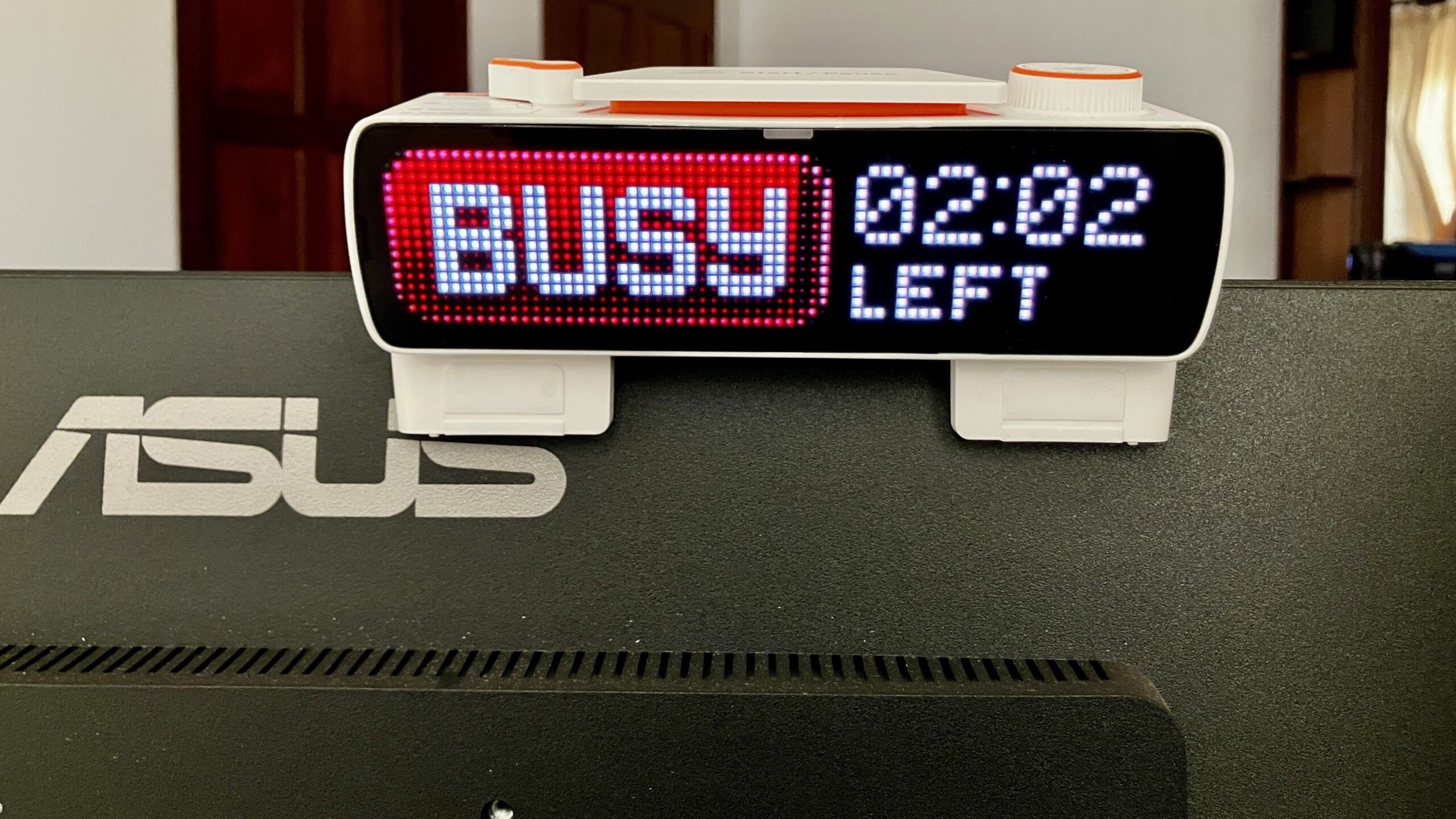
At its most basic, the Busy Bar is a desktop toy with an LED screen that says, “Busy” or “Do Not Disturb” in all caps next to a timer that counts down the minutes and seconds until you’re available again. Other all-caps message options are: “Back Soon,” “Booked,” “Chill Time,” “Coding,” “Flow,” “Keep Out,” “Low Social Battery,” “Lunch,” “Meeting,” “On Air,” and “On Call.”
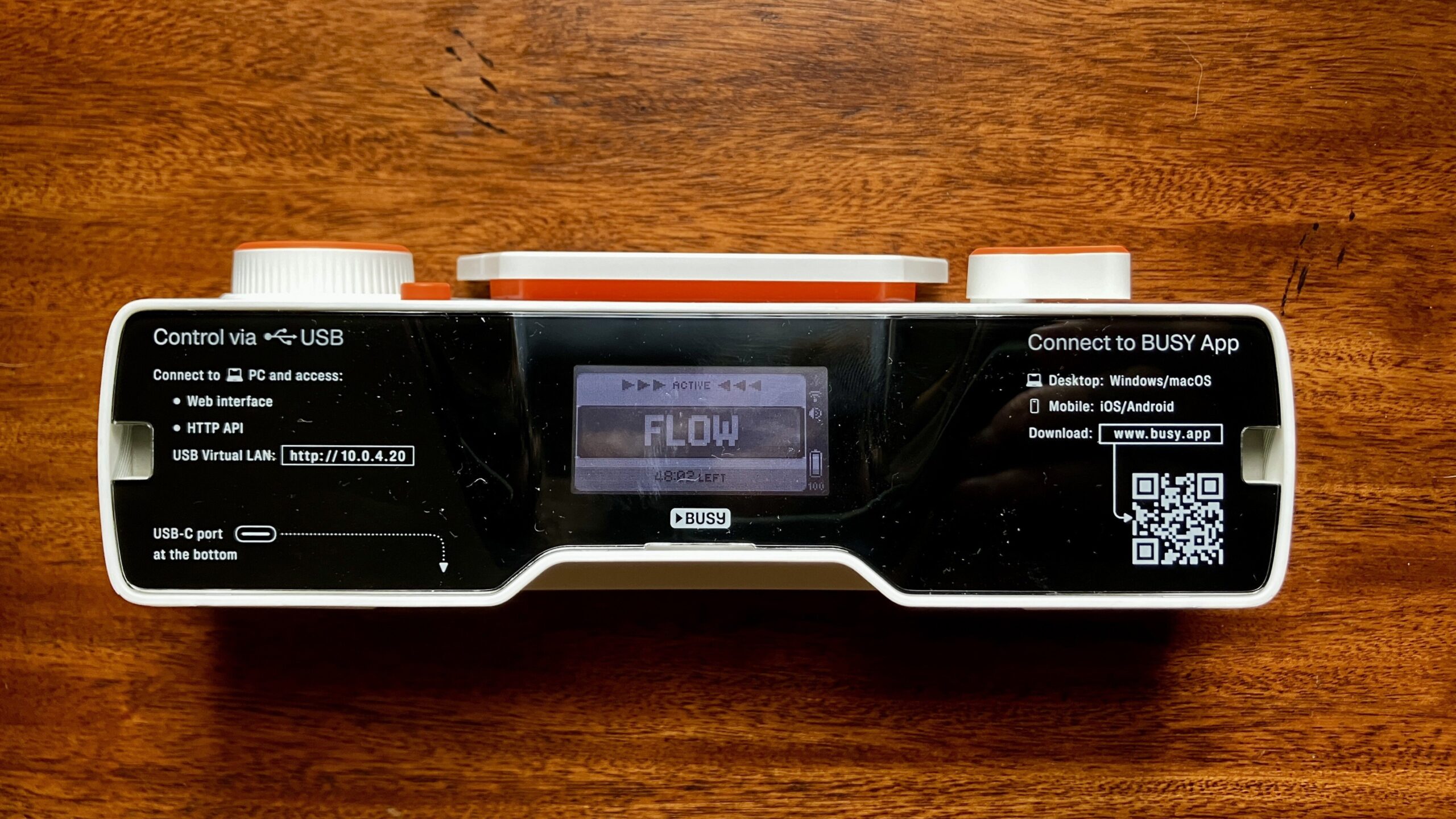
On the reverse side is a miniature version of the same screen, so you can face the Busy Bar out toward your colleagues and not lose sight of the message and countdown yourself. A foot flips out from the bottom of the device, helping you balance the Busy Bar on top of a computer monitor.
(Credit: Jill Duffy)
Put the switch in its highest position, and the Busy Bar runs a standard work/break sprint timer, á la the Pomodoro Technique. (You could just as easily use a free browser plug-in, a free website, or the timer on your phone or computer for that, but never mind that for now.) Here, you get a 20-minute work sprint followed by a five-minute break. Push the lever down one notch to Custom mode, and you can change the number of minutes in your sprints. I like a 50/10 setup.
(Credit: Jill Duffy)
In the top-center position is the largest button, reminiscent of the kind you might smash if you were a contestant on Family Feud. It starts and pauses the timer during sprints, and it’s delightful
A Desktop Display That Might Seriously Annoy Your Colleagues
As a remote worker, no one sees my Busy Bar status except my dog, and she can’t read English
I wonder what type of reception this gadget would get in an in-person work setting. I picture myself placing the Busy Bar on a real desk in a real office with human coworkers, angled so my boss and others can see it when I’m trying to focus. “Attention, everyone!” it seems to say, “Jill Duffy shall be working very hard for the next 50 minutes! She shan’t be interrupted!” The only outcome I can imagine is how much everyone would hate me.
(Credit: Jill Duffy)
The universal sign that you don’t want to be disturbed is to use headphones. Put them on, and they stop people from approaching you in offices, on public transit, and even while walking down the street. They don’t even have to be in use—heck, they don’t even have to work. You just have to put them in or over your ears. And they get the job done politely, something I can’t say about an all-caps message telling people to come back in no less than 38 minutes and 12 seconds. I can see how using the Busy Bar as a status indicator is useful to me, but to others, it likely would seem rude.
The “On Air” sign is the only one that seems remotely polite, although if you work in broadcasting, hopefully you already have one outside your studio
Block Apps, Curb Distractions, and Maybe More
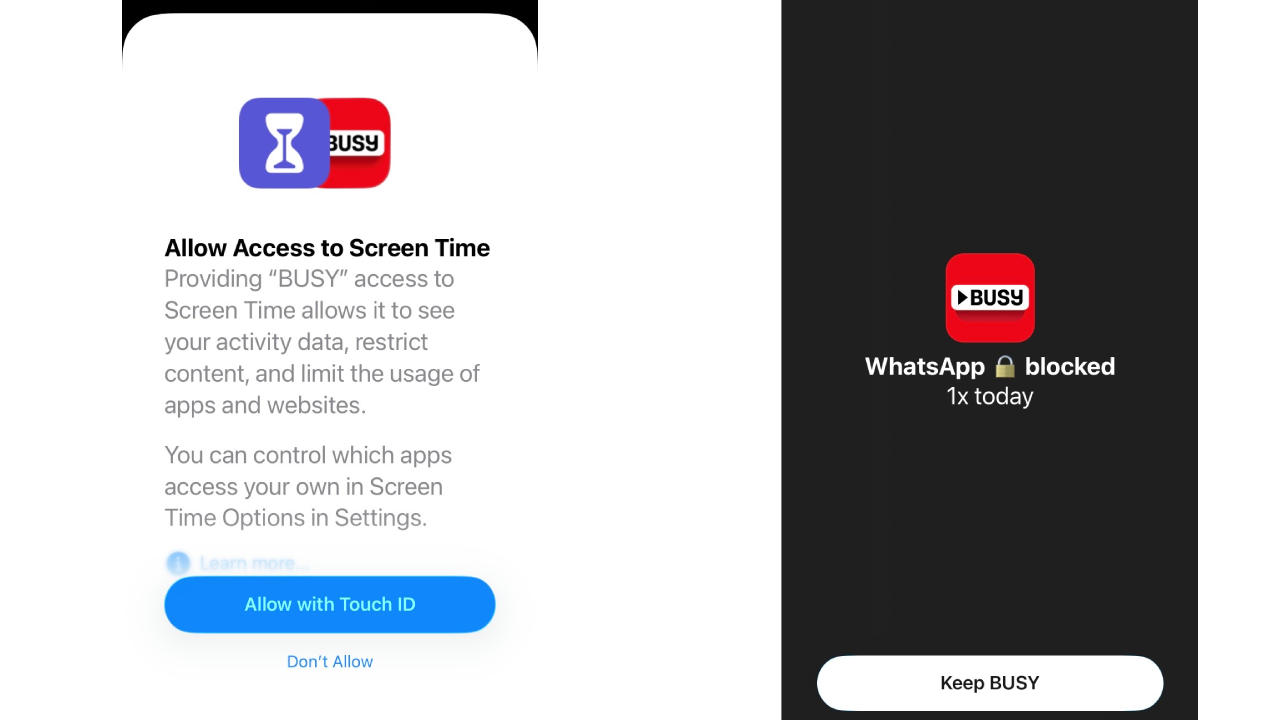
The Busy Bar is meant to curb more than just interruptions from coworkers. By syncing the device to a free Android and iOS app (called Busy—Advanced Focus Timer), you can lock yourself out of apps and stop notifications whenever you’re in a timed busy session. You don’t even need to have a Busy Bar to use it. It works much like other app blockers, such as Opal, Brick, or Unpluq, except that it focuses on locking you out during work sprints
An optional Google Calendar integration should enable the Busy Bar to automatically display a reminder before events and a busy status during these appointments. You must set this up through the web app—it’s not possible to do soiple tries, I couldn’t get this functionality to work
A separate On Call integration promises to automatically show the “On Call” message on your Busy Bar whenever your microphone is in use, namely, for when you’re on calls. This option is in the Mac app, but not the mobile app or web app. The first time I tested this feature, nothing happened. I had the Busy Bar switch set to Custom mode and thought maybe that was the problem. Turning it to Busy mode made it work. When I switched back to Custom mode, it miraculously worked that time. I tried this feature multiple times. Once, I experienced a long delay before the device registered that I was on a call. Other times it worked immediately.
In the Preferences section of the desktop app is an option for your computer display to dim and show the countdown timer when you’re in a break phase. I like this option a lot, and it worked well
The inconsistencies between the apps make using the Busy Bar rough because you have to look in three or four different places to find what you need. Even finding something as simple as the remaining battery level is a pain; it’s in the desktop app, but not the web or mobile app. It does appear on the back of the device, but only if you can read the teeny tiny typeface.
(Credit: Flipper/PCMag)
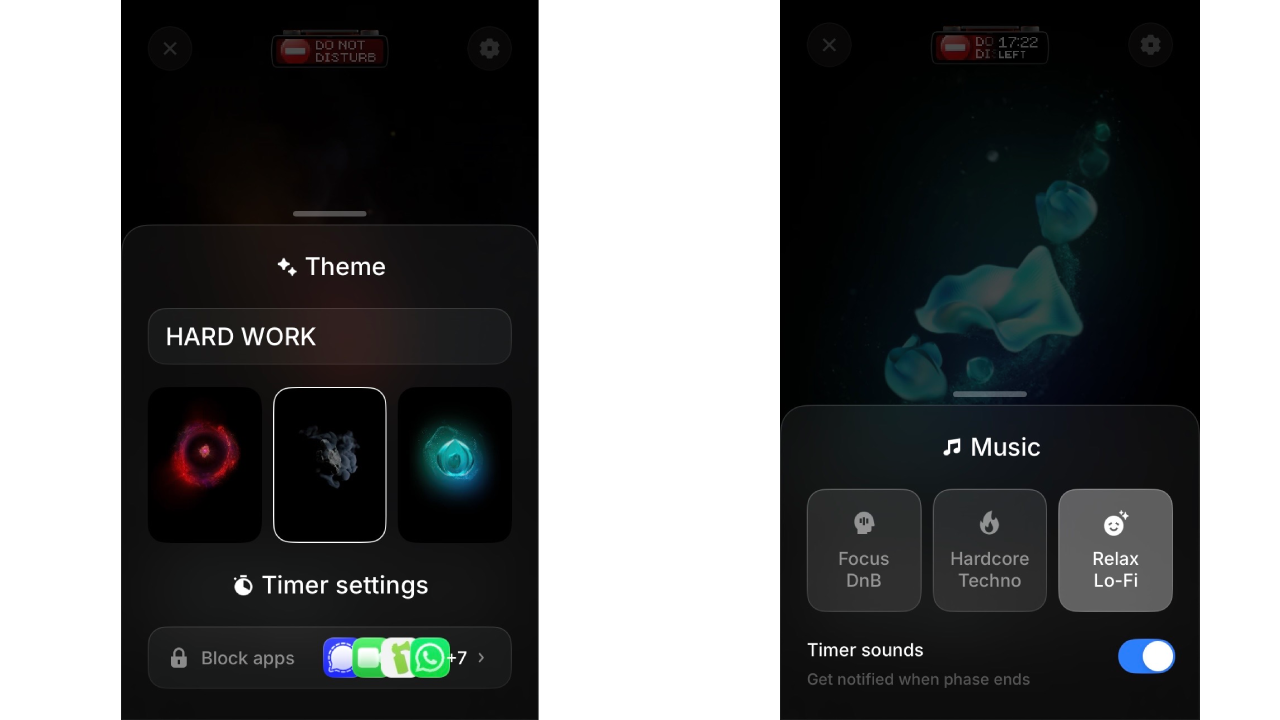
I want the mobile app to do more, and one day it might. For now, it’s very lightweight. It comes with three optional music choices (it’s the only app version with these options), none of which I could fathom listening to while working. A future update should also let you change the display message on the Busy Bar to any word or even drawing you want
A Busier Future for Busy Bar?
Already live is support for smart home integrations. You can connect smart lights,locks,speakers, and other elements in your home to create a customized environment for work or break cycles
If you’re a Flipper fan, the device supports some hacker-friendly technologies, including open-source firmware, an open HTTP API, MQTT, Python & TypeScript libraries, and WebSocket. JS runtime support is shipping in the next two months, as well.
(Credit: Flipper/PCMag)
Flipper has even more in store for the Busy Bar for the future. Apps, for example, are reportedly coming. As of this writing, the only on-device app is a date-and-time display, which you can customize a little bit, though it’s a stretch to call it an “app.” That’s a clock
Productivity enthusiasts might also get some tools for tracking work and distractions, along with “a recommendation engine that analyzes your behavior, learns when you get tired, and suggests what to block and when,” Without seeing how all that works, it’s impossible to recommend the Busy Bar for this purpose. (In the meantime, use RescueTime if you want to analyze your productivity using real stats.)
Enjoy the Button-Smashing and Start Tinkering
The Busy Bar is a fun piece of tech. It would make a great gift for someone who has everything and feels nostalgic for 1980s gadgets. Whether it will enthrall tinkerers as much as the Flipper and Flipper Zero is hard to say until we have more time to explore its full capabilities
