

10 Apple Watch Features That Work Even Without Your iPhone Nearby
By Aaron MamiitAug. 1, 2026 10:02 am EST
The Apple Watch is designed to work with the iPhone, but it’s far from being a worthless gadget if they’re separated. There are still so many things you can do with the wearable device, including sending communications, paying for your purchases, and staying on top of your wellbeing
There may be situations where you decide to wear your Apple Watch but leave your iPhone, such as when you’re out exploring a new area or heading out for a quick errand, or where you lose access to your iPhone, such as when its battery dies or you lose it. It’s nice to know that, while the Apple Watch is a companion device, it’s not dependent on the iPhone for all of its functions
In this article, we’ll showcase 10 Apple Watch features that work even without your iPhone nearby. Some of them will still require a Wi-Fi or cellular connection, but some of them are available even when the smartwatch doesn’t have access to the internet. We’ll explain why it’s great to be able to use these features without the iPhone and provide instructions if preparation is necessary before you leave your phone behind
Make phone calls and send messages
Ground Picture/Shutterstock
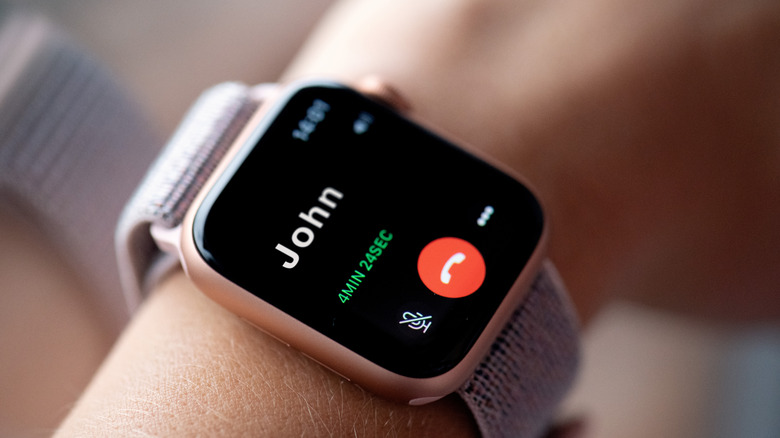
One of the most important functions that you can unlock by buying an Apple Watch with cellular connectivity is the ability to make phone calls and send messages independently from your iPhone. However, there’s an extra cost involved for this convenience, not just in the initial purchase but also in the monthly plan from your carrier. Making phone calls and sending messages is still possible from a non-cellular model of the Apple Watch without your iPhone, though, but only if you can connect the smartwatch to a Wi-Fi network.
Whether you’ve got a cellular or Wi-Fi connection on your Apple Watch, you can call your friends by going to the Phone app on the wearable device. From there, you can select from your contacts or tap the numpad icon to type the phone number that you want to call. In case you didn’t know, one of the holes on the side of the Apple Watch is the microphone — for newer models, it’s located just below the Digital Crown. The Messages app, meanwhile, is the one you need to launch if you want to send a text message to someone. You’ll also be able to receive calls and messages on the respective apps.
Ask Siri for information
Wachiwit/Shutterstock
Siri AI is one of the new watchOS 27 features, but it requires an iPhone 15 Pro or newer nearby. An Apple Watch without its paired iPhone but with a Wi-Fi or cellular connection will still be able to access the regular version of Siri, though. Going hands-free remains possible, as you can call on the digital assistant if you need help with tasks like searching for information and launching apps
There are three ways to wake up Siri on the Apple Watch, each of which you can toggle in the wearable device’s Settings app. You can lift your wrist and start talking with the Raise to Speak feature, you can say “Siri” with the Listen for “Siri” feature, or you can press and hold the Digital Crown until you see an indicator that Siri is listening. The Siri that you can access on the Apple Watch may not be the AI-powered version if you don’t have your iPhone with you, but it’s still a helpful companion if you need to quickly check on something while your hands are unavailable.
Check your friend’s location
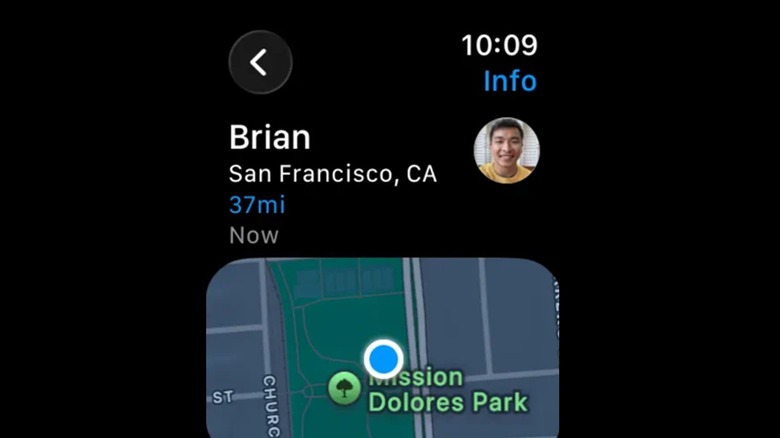
The Find People app on your Apple Watch will let you see the locations of your friends and loved ones. They need to have their own Apple Watch, iPhone, or iPad, and they should have previously shared their location with you. They will show up on a list on the app, and each contact will appear with their approximate distance from you and their general location. Tapping on their name will bring up a map that shows where they are, a more specific address, and directions to that place.
You’ll be able to access the Find People app as long as your Apple Watch has a Wi-Fi or cellular connection. If you get separated from your companion and you don’t have your iPhone with you, this feature will help you get to where they are
In addition to Find People, the Apple Watch also has a Find Devices app that will let you check the location of all your Apple gadgets, and the Find Items app that shows the whereabouts of your Apple AirTags. Apple will combine all of them into a Find My app for watchOS 27, though, so you can access these functions in one place
Stream music
Pixedeli/Getty Images
When you’re out for a run and when you’re working out in the gym where there’s heavy equipment, it might be troublesome to have your iPhone with you. If you like exercising with music, the good news is that you can access Apple Music on your Apple Watch even if you don’t have your iPhone with you, as long as it has a Wi-Fi or cellular connection
If you have an active Apple Music subscription, you’ll be able to access your playlists on the Apple Watch’s Music app. You can play your tracks on the wearable device’s speakers if you’re all alone, but you can also pair it with Bluetooth speakers for louder volume, or connect it to your Apple AirPods for private listening. In addition to launching your playlists, you can explore the other offerings of Apple Music on your Apple Watch, including searching for new tracks and checking the service’s recommendations on its Radio feature.
Receive directions from Maps
Getting directions from the Apple Maps app is one of the smart ways to use your Apple Watch when traveling abroad. It can be especially valuable in a pinch because it’s accessible even if you leave your iPhone at your hotel for safekeeping, as long as your wearable device has a Wi-Fi or cellular connection.
Launching the Maps app on the Apple Watch shows your current location. Tapping the magnifying glass icon on the lower right of the screen will bring up options to search for places, access recent locations, and find nearby establishments such as restaurants and grocery stores. Once you’ve selected where you want to go, you can tap on the upper right of the screen to select whether you’ll be driving, cycling, walking, or taking public transportation
This feature will work better if your Apple Watch is a cellular model since you’ll be on the move while using it. It might be difficult to maintain a Wi-Fi connection unless you rent a portable Wi-Fi router for your trip
Track workouts and fitness goals
Wachiwit/Getty Images
If you decide to go for a run on a nature trail, taking your iPhone with you may weigh you down. However, even with no Wi-Fi connection available, and even if your Apple Watch isn’t a cellular model, you’ll still be able to keep track of your workouts and fitness goals
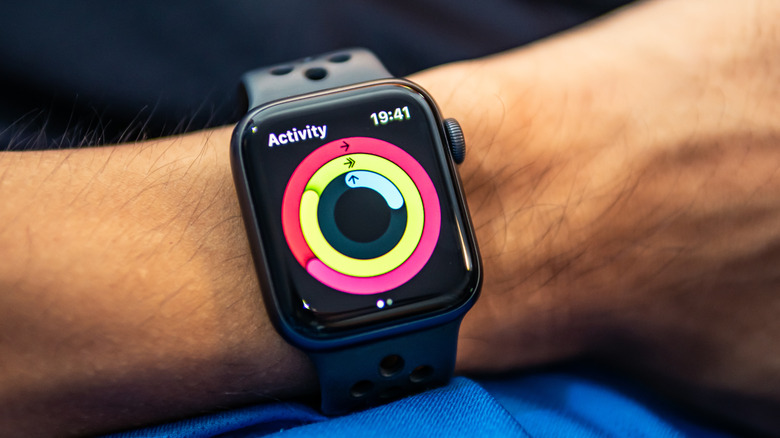
An Apple Watch with no access to the internet is still a helpful tracking device for exercises. You can get the Workout app to gather data, and the Activity app that fills your Move, Exercise, and Stand rings will keep going. This means that even if you don’t have your iPhone with you, your Apple Watch will keep recording these health metrics, and it will then sync that data with your iPhone when these two devices reconnect
If your Apple Watch is a Wi-Fi-only model, you can choose to leave your iPhone in your locker while you’re at the gym to make sure that it doesn’t get crushed by weights or machines. Once you’re done and the devices reconnect to each other, all the fitness progress that you made will reflect on your iPhone’s Health app
Purchase with Apple Pay
ZikG/Shutterstock
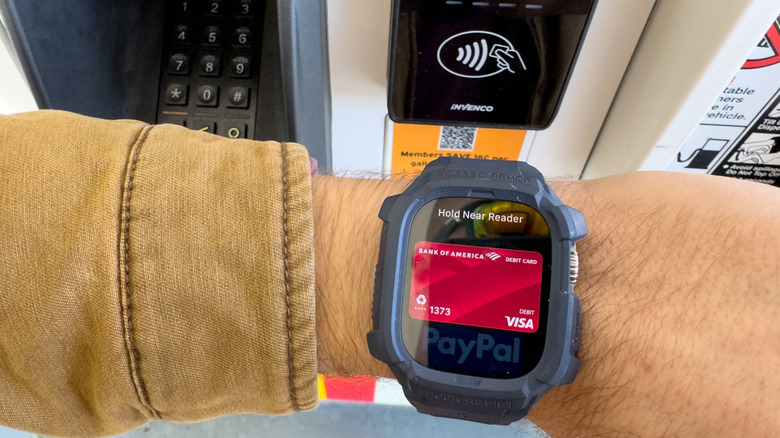
We tagged Apple Pay as one of the essential Apple Watch features you have to enable yourself. However, once you’ve finished the setup process, you can use it even without your iPhone nearby and without an internet connection on your wearable device. This means that even in emergencies, when you don’t have access to your physical card or your iPhone, you won’t be cut off from your cards since you can still use Apple Pay through your Apple Watch
Using Apple Pay on your Apple Watch requires going into the Watch app on your paired iPhone, then selecting the Wallet menu. You can add your cards here, either by holding them close to your iPhone, scanning them using your phone’s camera, or manually entering their details.
When you’re ready to pay for your purchases, double-click the side button of your Apple Watch, then choose the card that you want to use. Hold the smartwatch up, with its screen facing near the contactless card reader, and your payment should go through.
Find your way with Compass
Hadrian/Shutterstock
The Apple Watch’s Compass app is very helpful for hikers and outdoor enthusiasts, and it’s even more valuable because it relies on the wearable device’s own GPS hardware … which means you don’t need to have your iPhone on you. Launching the app shows your bearings, which you can use if you’re heading for a campsite or any other specific location. You’ll also be able to check your elevation and coordinates. Your iPhone and Apple Watch may not be able to find a signal in such areas, but the smartwatch’s Compass will still work.
Within the Compass app is the Backtrack command, which is among the Apple Watch safety features that you should know about, especially if you’re in an unfamiliar area. When you activate it by tapping on Record Path, the Apple Watch will begin tracking your movement, and once you press the Retrace Path option, the app will show an arrow that directs you to your starting point. While the feature doesn’t take elevation and blocked paths into consideration, it should still give you an idea of how to get back to where you started, and it also works without your iPhone nearby.
Monitor your health
KANUT PHOTO/Shutterstock
The Apple Watch is one of the most popular wellness gadgets around, as it has a comprehensive suite of health-monitoring features. They all work even if your wearable device is cut off from your iPhone or an internet connection because they use the sensors inside the gadget. Your Apple Watch tracks and records the fitness data that you want to measure, then syncs it with your paired iPhone to store the information the next time that they connect
Among these features for the Apple Watch are the Heart Rate app, which also offers the option to send notifications if it detects irregularities; and the Blood Oxygen app, which can detect the oxygen level of your blood. The smartwatch also has an ECG app that measures the electrical signals generated by your heartbeats. You can use your Apple Watch to monitor these health metrics at any time, even when you leave your iPhone in the gym locker or if there’s no cellular signal at the camping grounds after a day-long trek.
Play downloaded content
If you often find yourself in areas where there’s no cellular signal for your iPhone or Apple Watch, you can download content to your smartwatch beforehand so that you can still access it during these times. You can even do this without having to take your iPhone out of your pocket
To download songs to your Apple Watch, you can go into its Apple Music app, tap the three-dot icon beside the song or playlist you want to add, tap Add to Library, then tap the three-dot icon again to select the Download option. Meanwhile, for audiobooks and podcasts, you can open the Watch app on your iPhone, go to the Audiobooks or Podcasts menu, and select the titles that you want to download to your Apple Watch
Once you’ve finished downloading the content to your Apple Watch, you can access it any time, and like with streaming music, you can listen to your selections using the smartwatch’s built-in speakers, Bluetooth speakers, or your AirPods
