

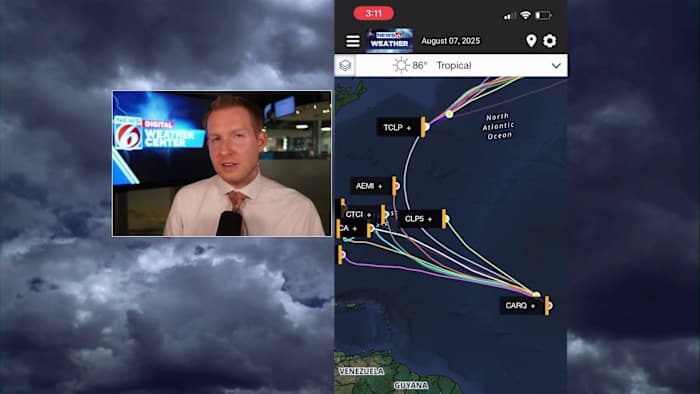
Here’s how to use the News 6 Weather App to track the tropics –
Get the most out of News 6 Weather App for everyday use
Jonathan Kegges, Meteorologist
Published: July 18, 2026 at 10:37 PM
ORLANDO, Fla. – Track the tropics with the News 6 Weather App!
Here you will also find how to navigate the News 6 Weather App to find the 10-day forecast and track Central Florida’s daily afternoon thunderstorms in your neighborhood
On the homepage of the app, scroll down past the PinIt section. There are several clickable tiles to take you deeper into the app
Tapping on the “Hurricane Coverage” tile will take you to forecast analysis from the News 6 weather team on the current state of the tropics. Planning information can also be found here
Tapping on the “Tropical Storm Tracker” will bring you to an interactive interface where you can see the official National Hurricane Center forecast and toggle on/off tropical models and other overlays
To toggle on/off these features click the “pancake” icon in the upper left corner
The “Tropics Watch” tile will bring you right into the National Hurricane Center forecast discussion section. Here, chances for tropical development are highlighted
The “Tropics Update” tile will give you the most recent tropical-related stories written by the News 6 Weather Team. If there is an active storm, you can click on the name to get the most up-to-date information on the storm
When you open up the News 6 Weather App you will find current conditions, a 3-day forecast and an hourly forecast for the next 6 hours. Tapping on any of these will expand this information
Follow the tabs across the top to extend the hourly forecast to see the 10-day forecast
Any active weather alerts from the National Weather Service for your area will be at the top
If at anytime you wish to return to the home screen, tap the News 6 Weather logo on the top right to the left of the date
[VIDEO BELOW: Jonathan Kegges explains how to use News 6 Weather App]
Scrolling past the forecast section will bring you to the radar. By tapping on that, the radar will fill your entire screen
Clicking on the play button at the bottom will send the radar into motion, showing you a loop of the last 2 hours. After a brief pause at the current time, it will show a few hours of the future radar product
Here’s what really makes the radar on the News 6 weather app shine
Find the gear icon in the top right and tap on that
This will open a new page that allows you to toggle data, overlays and settings for the radar
In the “data” section, tapping a circle will turn on a new overlay. Simply hit the back arrow to return to the radar screen with your newly selected overlay
In the “overlay” section, you van turn on lightning and active alerts to be displayed on the radar map
There are many other overlays to play with
In the “settings” section, you can customize the map to your liking
News 6 Weather Team forecast
Below the radar you will find a video and article from the News 6 weather team highlighting Central Florida’s forecast
PinIt
Last, but certainly not least, is the PinIt section. This is the News 6 platform to submit your photos to News 6
All you have to do is sign up for free so we can give you credit. Simply upload your photo, and you may see it across all News 6 platforms
An important note:
Turn location services ON to receive severe weather warnings and lightning detection. Anytime lightning is detected within 10 miles of your location, you will receive a push alert
To do this, click the location marker next to the gear on the top left of the home page
Copyright 2025 by WKMG ClickOrlando – All rights reserved
